




School report card software builds each student’s report card from the grades already in your gradebook, so teachers enter scores once and nobody retypes them. The system applies your grading scale and weights, calculates averages and GPA, and fills a report card template for every student. The Classe365 student information system does this inside its assessment and grading module.
This guide explains how automation works, how it compares with spreadsheets, and the exact steps to set up automated report cards in Classe365. It is written for US K-12 schools, with notes for colleges where transcripts matter. Some vendors call this tool a report card generator or a student result management system. The goal is the same: grades go in once and report cards come out.
In the US, “school report card” can also mean the state and district accountability reports required under ESSA. Education agencies publish those, not a school’s grading software. The U.S. Department of Education explains them in its ESSA report card checklist.
How does automated report card software compare with Word, Excel, and mail merge?
| Word or Excel by hand | Spreadsheet with mail merge | School grading software | |
| Where grades live | In each teacher’s file | One master sheet, copied from teachers | One gradebook |
| Calculation | Typed or formulas per file | Formulas you maintain | Set once in grading scales and weights |
| Fixing a grade | Edit, recalculate, reprint | Edit, merge again, recheck | Edit in the gradebook, and the report card reads the new score |
| Parent access | Print or email files | Print or email files | Portal visibility setting |
| Control | Anyone with the file | Anyone with the file | Locks, publish status, user roles |
| Best for | One class group | Small schools with one grader | Schools where several teachers grade each student |
What should school grading software include?
Use this table as a checklist when you compare tools.
| Feature | Why it matters | What Classe365 provides |
| Flexible grading scales | Schools grade in letters, points, percentages, or rubrics | Five scale types: grades, rubric, percentage, actual points, manual entry |
| Weighted categories | Exams count more than homework | Assessment categories and subject weights |
| GPA setup | Letter grades need grade points | GPA points set inside the Grades scale |
| Grading periods | Terms and semesters roll into a final grade | Grading periods with weightages and consolidated report cards |
| Editable report card templates | Every school has its own layout | Predefined templates or a blank start, linked to a class or cohort, with preview |
| Attendance on the report | Families expect it in one place | Attendance table you can add to the template |
| Comments and rubrics | Numbers alone miss context | Comments per assessment, rubric grid, overall end-of-year comment |
| Publish control | Teachers need time to finish | Publish and unpublish for assessments, lock for edits |
| Parent and student access | Reduces printing and calls | Report cards visible in the student profile and portal |
| AI comments | Writing comments for every student takes hours | AI assessment evaluation (AI add-on) |
| Transcripts | Colleges and high schools need credit records | Transcripts built from Degree Audit data (Degree Audit add-on) |
How do you set up automated report cards in Classe365?
Setup has three parts. An administrator sets the grading rules once. Teachers then create assessments and enter scores. Last, you publish and check the results.
Part 1: Set up your grading rules (administrator)
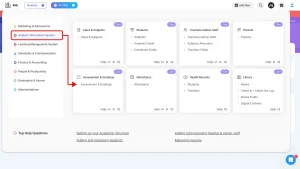
- Open the module. Go to Modules, then Student Information System, then Assessment & Grading. Open the Grade Setup tab.
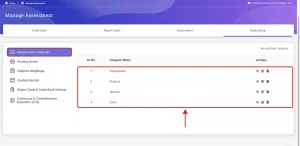
- Add assessment categories. Categories group your assessments. Common examples are participation, projects, quizzes, exams, and homework. Click the Add Category button for each one.
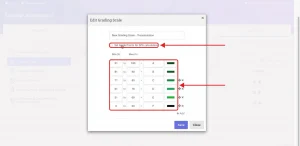
- Create your grading scales. Classe365 offers five types. For letter grades, enter the ranges, such as 91 to 100 for an A. Set the GPA points on the same screen, whether your scale tops out at 4 or another number. Percentage, actual points, and manual entry need no setup. Percentage is calculated automatically from the points you award.
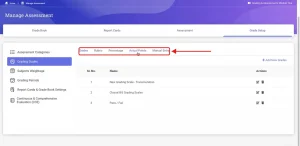
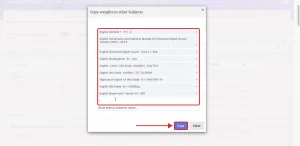
- Set subject weights. Choose Yes to use weights. Decide whether teachers or administrators set them, and whether to display an overall score. Then open the weights screen. You can use the same weights for every course or different weights per subject. After you finish one subject, copy its weights to other subjects.
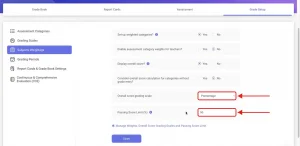
- Set the overall score scale and passing score. You can set these per subject or use one passing score for all subjects.
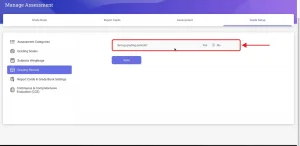
- Add grading periods. Turn on grading periods and create semester 1 and semester 2, or term 1 and term 2. Add their weightages. Do this before teachers enter grades. After scores are entered, you can’t change grading periods.
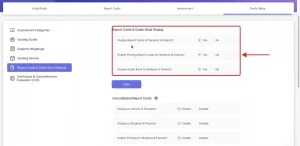
- Choose your report card settings. Decide whether parents and students can see report cards, whether printing is on, and whether consolidated report cards are on for multi-term years. The visibility setting applies to the academic session selected at the top. Switching it off hides every report card in that session.
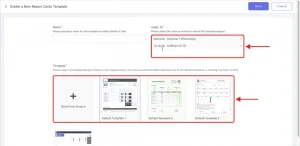
- Add a report card format. Click Add format. Pick a predefined template or start from scratch. Name it, then choose the class, cohort, or section it applies to. The format only applies to the groups you link.
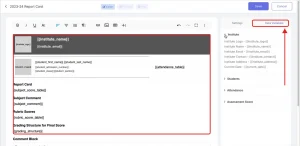
- Customize the layout. The editor is on the left, and the settings are on the right. Anything shown in brackets is a variable that fills in from student data. You can add student profile fields such as email, an attendance table, and score tables. The gear icon opens extra options. In the attendance table, choose which statuses to show and whether to display numbers or percentages. In the subject scores table, choose what to show. For example, you can turn off continuous and comprehensive evaluation scores, or show only category and final scores. Use the preview often, with real or sample student data.
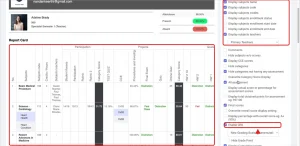
If you track subtopics inside a subject, such as decimals and long division under maths, set them up as continuous and comprehensive evaluation categories. Classe365’s report card formats guide lists every variable and option.
Part 2: Create assessments and enter grades (teachers)
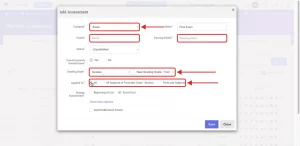
- Create an assessment. In the teacher or professor portal, add an assessment. Choose the category, name, points, and passing points. Keep the name to 30 characters or fewer so it fits on the report card. Set the status to published or unpublished, which controls whether students and parents see it. Choose whether it counts toward the overall score, pick the grading scale, and apply it to all subjects or one. Teachers can only add assessments to subjects they teach. For homework, you can enable online submission with a deadline and choose who gets notified.
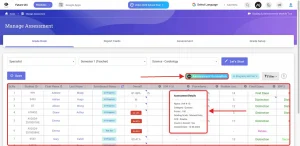
- Enter scores in the gradebook. Select a subject to see every assessment set up for it. Enter scores for each student. For a rubric assessment, click the grid icon, select a score for each learning objective, and save. If a student attached work, click the attachment to download and view it.
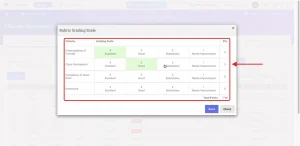
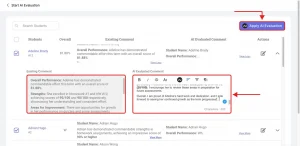
- Add comments and, if you use it, the AI evaluation. At the end of each assessment, you can write a comment. You can also write an overall comment, which appears on the report card as the end-of-year report. For the AI evaluation, select all students in the subject or just a few and run it. The AI reviews every assessment and writes a summary of overall performance, strengths, and weaknesses. Review the result, add your own comments, and apply it.
Part 3: Publish and check the result
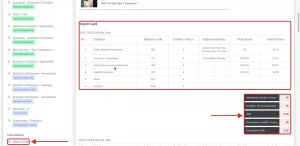
- Publish and review. Publish your assessments and report cards when scores are final. Open a student profile and check the report card, including consolidated scores and comments. Students and parents see the same report card in their portal when visibility is on.
What happens when a grade changes after report cards go out?
Change the score in the gradebook. The report card reflects the updated score, so you don’t rebuild anything by hand.
Two controls keep this safe. Locking an assessment stops teachers and other staff from editing its scores, so you can lock once grades are final. Unpublishing an assessment hides it from students and parents while teachers and administrators can still see it.
If you change weights or grading scales after grades exist, Classe365 shows how many subjects are affected. One click updates all the scores. Grading periods are the exception. They cannot be changed once grades are entered, so confirm them first.
Are digital report cards safe under FERPA?
Digital report cards are education records, and FERPA covers how schools share them. Parents have the right to inspect their child’s records, and schools control who else can see them. The rules sit in 34 CFR Part 99. The Department of Education’s Privacy Technical Assistance Center publishes guidance on student data and vendors.
Check three things in any tool:
- Can you turn report card visibility on and off by session?
- Can you control who sees unpublished work?
- Are access roles set per user type?
How do report cards connect to transcripts and student performance reports?
In Classe365, the report card pulls subject scores, consolidated scores, attendance, and comments from the assessment and grading module. Transcripts are built from Degree Audit data. You create a transcript template, attach it to a degree, and publish it for each student. The subject table can show course name, code, credits, credits earned, final score, GPA, status, and academic session. Administrators can print it from the transcript view. This matters most for colleges and for high schools tracking credits.
For performance trends, Classe365’s AI module lists attendance, performance, and outcome analytics. To see how gradebook assessments differ from an LMS, read our guide to online assessment software vs LMS assessment tools.
Report card season checklist
Before grading opens
- Set grading scales, weights, and passing scores.
- Grading periods and weightages are entered.
- Assessment names are 30 characters or fewer.
- Each report card format is linked to the right class or cohort.
- Preview checked with real student data.
While teachers grade
- Every assessment has a category, scale, and passing points.
- Rubric assessments score all learning objectives.
- Comments are written, or AI evaluations are reviewed and applied.
Before you publish
- Final assessments are locked.
- Check a few report cards per grade for attendance and scores.
- Set report card visibility the way you want for parents and students.
After you publish
- Parents can open their child’s report card.
- Corrections follow the same path: fix the gradebook, then recheck.
What does it cost?
In Classe365, Core starts at $100 per month for 1 to 100 students. The AI module is $75 per month, plus usage charges. Degree Audit, which transcripts rely on, is $75 per month. Setup, implementation, and data migration start at $2 per student for virtual delivery. Annual billing saves 10%. Only the lowest tier price is shown on the pricing page, so check the Classe365 pricing page for your size.
Last checked October 11, 2026.
Where does Classe365 fit, and what should you confirm in a demo?
Classe365 keeps grading, report cards, attendance, and transcripts inside the same student information system. Grades are entered once, and every report reads from that gradebook. The product demo walkthrough shows the wider platform.
Ask these questions in any demo, including ours:
- Can I generate and download report cards for a whole class in one batch?
- Can report cards be emailed to parents, or do families log in?
- How does GPA display when grading periods are on? The documentation says the GPA score variable shows no values when grading periods are enabled.
- Can I import last year’s grades during setup?
See your own report card built live
Bring your current report card layout and grading scale. We will set it up on screen. Book a Classe365 demo or talk to the team.
FAQ
Can different grade levels use different report card formats?
Yes. Each format is linked to a class, section, or cohort. You can run one layout for elementary classes and another for high school.
Can we use rubric or standards-based grading on report cards?
Rubric is one of the five grading scales, and report cards can include a rubric table. Ask in a demo how your specific standards map to the rubric criteria.
Can teachers edit AI-generated comments before parents see them?
Yes. The AI evaluation is a draft that teachers review. They can add their own comments and then apply it, and it appears on the report card only after that.
Can we change the grading scale after grades are entered?
You can, but the system will flag affected subjects and ask you to update the scores. It then recalculates them in one pass. Test changes in preview first.
Does this work for colleges that need credits and GPA?
Yes. Report cards can show credits or hours and GPA, and transcripts draw on Degree Audit data for credits earned and final scores.
Can we bring in last year’s grades?
Setup and data migration are offered from $2 per student for virtual delivery. Ask Classe365 which historical grade data can be imported. Our SIS migration checklist shows how to prepare it.
Can we test a report card format before families see it?
Yes. You can save a format as a draft and preview it with real or sample student data. Only an active format applies to students.
Is report card software worth it for a small school?
If one person grades everything, a spreadsheet may do. Once several teachers contribute, errors and corrections multiply. Core starts at $100 per month for up to 100 students, so cost is not the barrier. Our guide to 5 signs it’s time to switch your school’s SIS helps you judge.