



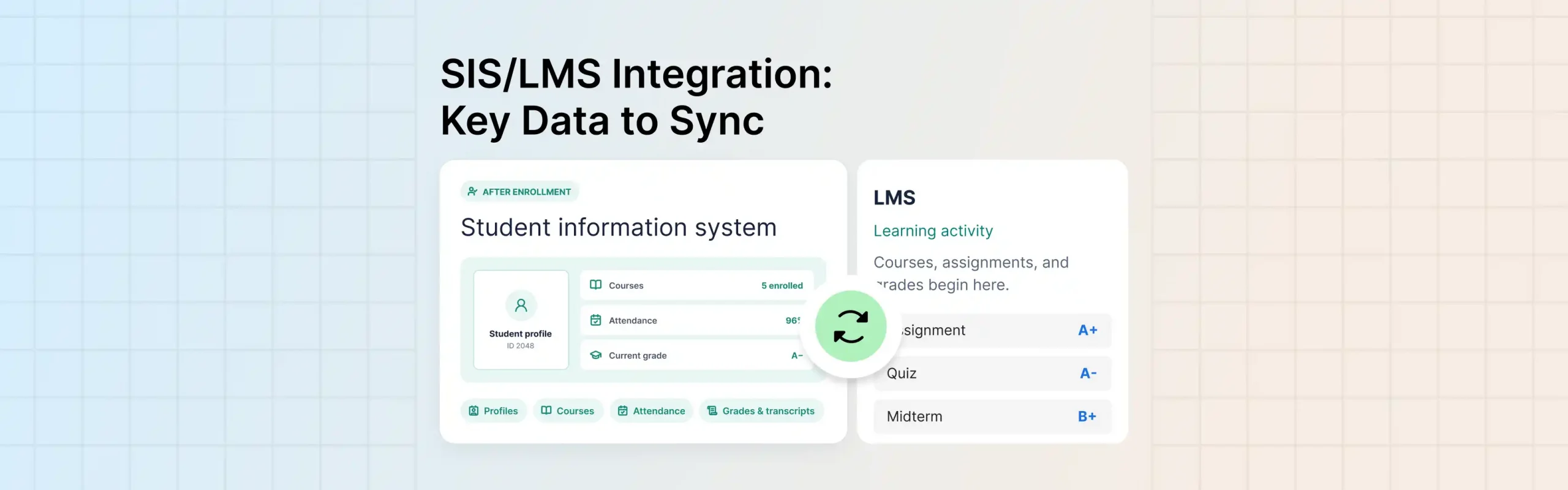
An SIS/LMS integration connects your student information system and learning management system so each record is entered once and stays consistent in both. At a minimum, four things need to move between them: people, classes, enrollments, and grades.
This guide covers what each system should own, which direction each type of data should flow, and how integrations are usually built. It then shows how Classe365 handles this through its student information system, learning management system, and Moodle, Google Classroom, and Clever connections. If you first need the basics of how the two systems differ, our guide to SIS vs LMS covers that. This article focuses on the data that moves between them.
What is an SIS LMS integration?
In any integration, one system owns each piece of data, and the other receives a copy when a defined trigger fires. The SIS usually owns people, enrollments, and official grades, while the LMS owns coursework, quiz attempts, and activity.
Standards exist to make this exchange predictable. The 1EdTech OneRoster standard covers K-12 data exchange between an SIS and an LMS, including rostering (who is enrolled in which class) and results (gradebook scores).
What is SIS integration?
Student information system integration is any connection between your SIS and another tool. The SIS holds the official student record: demographics, enrollment, attendance, grades, and transcripts. Integrating it lets that record feed other systems, such as an LMS, a billing tool, or a state reporting platform, without anyone retyping it.
What is LMS integration?
Learning management system integration connects your LMS to other systems so it receives the right people and classes and sends results back. It also covers live video tools, content libraries, and sign-in providers. The connection with your SIS matters most, because it decides who can see which course.
What data should sync between an SIS and an LMS?
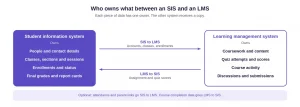
Start with the data that must stay identical in both places, then add optional items only if someone will use them. Each row below has a single owner, which prevents the most common sync problem: two systems holding different versions of the same fact.
| Data | Owner | Direction | Priority |
| Student accounts and contact details | SIS | SIS to LMS | Required |
| Teacher accounts and subject assignments | SIS | SIS to LMS | Required |
| Classes, sections, subjects and academic sessions | SIS | SIS to LMS | Required |
| Enrollments and enrollment status changes | SIS | SIS to LMS | Required |
| Assignment and quiz scores | LMS | LMS to SIS | Required |
| Final grades and report cards | SIS | Stays in SIS | Required |
| Parent or guardian links | SIS | SIS to LMS | Optional |
| Attendance | SIS | SIS to LMS | Optional |
| Course completion and activity data | LMS | LMS to SIS | Optional |
Take a student who changes their email address. You update it once in the SIS, and the change reaches the LMS. A teacher who scores a quiz in the LMS sends that score to the SIS gradebook, where it calculates the final grade. If someone then edits the same score in both places, you end up with two versions of it and no clear way to say which is right.
How does SIS LMS integration work?
Four common ways to connect the two systems, and the right one depends on how much control you need and how much upkeep you can take on.
| Method | How it works | Effort | Keeps data fresh | Main risk |
| Single platform | SIS and LMS are modules of one product | Lowest | Depends on the product | Less choice of LMS |
| Standards based | Both tools support a standard such as OneRoster or LTI | Medium | Scheduled or on demand | Support varies by vendor |
| API connection | Systems call each other’s APIs, often built by a vendor | Medium to high | Real time or scheduled | Breaks when either API changes |
| CSV files | Someone exports and imports spreadsheets | Low to set up | Only as often as someone does it | Errors and stale data |
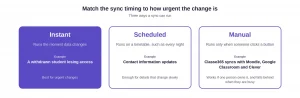
A sync can run instantly, on a schedule like every night, or only when someone clicks a button. Instant syncs suit urgent changes, such as a withdrawn student losing access. A nightly sync is enough for details like contact information. A manual sync works only if one person runs it, because it falls behind whenever that person is busy.
How does Classe365 connect its SIS and LMS?
Classe365 offers two routes: a native connection between its own SIS and LMS modules, and sync tools for external platforms.
How does the native connection work?
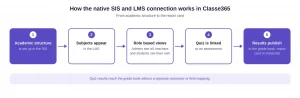
The LMS builds on the structure you set up in the SIS. In the LMS demo, the presenter explains that once the academic structure is in place, the subjects appear in the LMS as well. An administrator sees every subject, a teacher sees only the subjects they teach, and a student sees only the subjects they are enrolled in.
A quiz built in the LMS can link to an assessment, and its results then publish to the grade book and the report card or transcript. The grade book link inside each LMS subject opens the Assessment and Grading module directly.
The practical benefit is avoiding a separate sync project, with no connector to configure and no field mapping to maintain. The trade-off is that you work with Classe365’s LMS instead of choosing your own. The LMS is a $ 75-per-month add-on, and the Core plan covers the core SIS modules, such as Academics and Students & Parents.
Classe365 LMS module demo:
What syncs with Moodle, Google Classroom, and Clever?
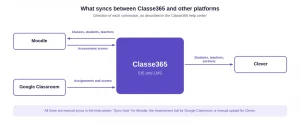
If your teachers already use another platform, Classe365 connects to it.
| Connection | What moves | Direction | Trigger |
| Moodle | Classes, sections, subjects and sessions, students and enrollments, teachers and subject allocations | Classe365 to Moodle | Manual, “Sync Now” |
| Moodle | Assessment scores from linked activities | Moodle to Classe365 | Manual |
| Google Classroom | Assignments and assessment scores | Google Classroom to Classe365 | Manual, from the Assessment tab |
| Clever | Students, teachers and sections | Classe365 to Clever | Manual upload |
Moodle also creates accounts and courses automatically when a student is enrolled in a Classe365 course. Google Classroom matches students by email, so each student needs the same email in both systems.
How do you sync Classe365 with Moodle, step by step?
- Create a web service in Moodle. In Site Administration, go to Server, then External Services. Add a service, enable it, choose “Authorized Users Only,” and add the functions the article lists.
- Generate a token. In Moodle, go to Web Services, then Manage Tokens. Create a token for your user and service, then copy the token and your Moodle URL.
- Connect Classe365. Go to Modules, Administration, then App Settings. Open Moodle and paste the token and the platform URL.
- Sync in order. Run the academic sync first, which covers classes, sections, subjects, and sessions. Then sync students, choose the academic session, and match fields. Sync teachers last.
- Bring scores back. In the LMS, open a subject, select Moodle Sync, and link each Moodle activity to a Classe365 assessment. Run the sync to pull the scores.
- Check the result. Use “View Details” to see the status of each run. If a record fails, the Message column shows the reason.
Order matters because students need classes to enroll in, and teachers need subjects to be allocated. The academic sync also lets you match an existing record or create a new one for course categories, so decide which you want before you run it.
What should you check before you integrate?
Whichever approach you choose, put these questions to your vendor or your own team. Answering them early prevents many of the problems that otherwise appear mid-term.
- Which exact fields move, and which stay behind?
- Which system owns each field, and what happens when the two disagree?
- Does each type of data flow one way or both ways?
- Does it run in real time, on a schedule, or only manually, and who owns a manual sync?
- How do withdrawals, transfers, and teacher changes reach the LMS?
- What matches a student across systems: an email, a student ID, or both?
- Where do you see a failed sync, and does it explain why?
- Can you test with one class before syncing everyone?
- Who supports it when the connection breaks, you or the vendor?
Privacy belongs on this list too. Under FERPA, a school can share education records with a vendor that acts as a school official. The vendor must perform a service you would otherwise handle with your own staff, work under your direct control for the use and maintenance of those records, and use the data only for the purpose you gave.
The Department of Education’s guidance on online educational services adds that you should use a written agreement where possible, specify what the provider collects, and have a policy for approving new tools. You can read how Classe365 describes its own approach on its FERPA page.
Which approach fits your school?
Choose based on how your teachers work today, not on which option sounds more advanced.
If you are choosing a platform from scratch, a single platform removes the integration project and suits schools that want one set of records and are content with one LMS. If your teachers are committed to Moodle or Google Classroom, keep it and sync the records, accepting that someone has to own the syncs.
Schools that want admissions, student records, and learning in one place can see how the pieces connect in Classe365’s student information system features, its admissions CRM, and our 20 essential school management software features.
For a platform comparison, see the best K-12 school management software.
To see the SIS and LMS working together on your own classes, book a Classe365 demo. You can also use the ROI calculator to estimate time spent on duplicate data entry, or read what other schools say.
FAQs
What happens to LMS grades when a student withdraws mid-term?
The SIS record stays, and in Classe365, changing an enrollment status does not detach the student from the SIS. The help center does not say how a withdrawn status affects LMS access or earlier scores, so ask your vendor and test it.
Should attendance sync to the LMS?
Only if teachers will use it inside the course, for example, to see who missed a live lecture. Attendance is an official SIS record, so keep the SIS as the owner and share a read-only view if needed.
Can both systems edit the same grade?
They can, but pick one place to enter each type of score and let the other receive it. With the Moodle sync, activity scores come from Moodle and flow into Classe365 assessments, so edit them in Moodle.
Does a Moodle sync use OneRoster?
The Classe365 help center describes the Moodle connection through Moodle web services and an API token, not through OneRoster. If your district requires OneRoster, ask the vendor which standards each connection supports.
What breaks a Google Classroom score sync?
Three things: a student whose email differs between systems, an assignment with a different total points value than the Classe365 assessment, and two students sharing one email in Classe365. The sync result’s More Details section shows the cause.
Does this work for colleges as well as K-12 schools?
Yes, the same ownership rules apply. Colleges usually have more complex catalogs, with programs, terms, and electives, so test how classes and sections map before you sync everyone. The Moodle sync handles academic sessions and lets you match or create course categories.
Who should own an integration at the school?
Name one person, usually the registrar or IT lead, who checks each sync and decides which system is right when records disagree. This matters most with manual syncs, which only run when someone starts them.
Do parents need their own LMS accounts?
That depends on your tool. Many schools give parents a portal view in the SIS and keep the LMS to students and teachers. Decide this early, because parent links add data to the sync and widen who sees student work.