




A school management system should integrate with five groups of tools: payment gateways, accounting software, learning and video tools, messaging channels, and identity or data exchange platforms.
Classe365 lists 22 integrations, split across two collections: 4 payment gateways and 18 app settings integrations. For example, Stripe sends payment status back to Classe365 through a webhook, and Classe365 pushes user and section data to Clever through an SFTP upload.
This guide groups all 22 by function. For each one, it lists where the integration is configured, which credentials it needs, and what the help center documents about how it works. It also covers student information system integration, because the student information system (SIS) is where Classe365 holds student records.
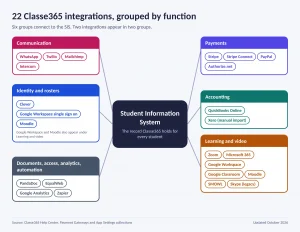
What should a school management system integrate with?
It should integrate with payments, accounting, learning tools, communication channels, and identity platforms. Four more categories surround that core: document signing, accessibility, analytics, and automation.
| Group | What it covers | Classe365 integrations |
| Payments | Online fee payment, with payment status returned to Classe365 | Stripe, Stripe Connect, PayPal, Authorize.net |
| Accounting | Invoices synced or imported into the accounting ledger | QuickBooks Online, Xero |
| Learning and video | Live lectures, assignment scores, quiz proctoring and calendars | Zoom, Microsoft 365, Google Workspace, Google Classroom, Moodle, SMOWL, Skype |
| Communication | SMS, WhatsApp, email marketing contacts and chat | WhatsApp, Twilio, Mailchimp, Intercom |
| Identity and rosters | User and section data, academic structure and single sign-on | Clever, Google Workspace single sign-on, Moodle |
| Documents, access, analytics, automation | Electronic signatures, accessibility widget, traffic tracking and workflow automation | PandaDoc, EqualWeb, Google Analytics, Zapier |
The U.S. Department of Education’s guidance on online educational services sets out requirements and best practices for schools that use third-party online tools.
What is the difference between a module and an integration?
A module is built into the platform and shares its database. An integration connects to a separate product through credentials, webhooks, or file exchange.
In Classe365, the SIS, the Learning Management System (LMS), Fee & Invoicing, Finance and accounting, and CRM are modules. Stripe, QuickBooks, and Zoom are integrations.
What does an integrated workflow look like for one student?
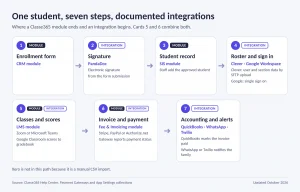
The path below follows one student through documented Classe365 integrations.
- A family submits an enrollment form built in the CRM module.
- Staff generate an enrollment agreement in PandaDoc from the submission and send it for electronic signature.
- Staff add the approved student to the SIS.
- Roster data reaches other apps. Clever receives users and sections through an SFTP upload. Google Workspace handles single sign-on.
- A teacher schedules a live lecture in the LMS using Zoom or Microsoft Teams. Scores from a linked Google Assignment flow into the gradebook.
- Fee & Invoicing creates the invoice. The family pays through Stripe, PayPal, or Authorize.net, and the gateway reports the payment status back.
- QuickBooks receives the invoice and marks it paid. A WhatsApp or Twilio message notifies the family.
How do payment gateway integrations work in a school management system?
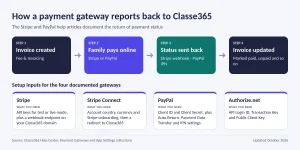
Stripe webhooks send payment status back, so invoices are marked as paid, unpaid, and so on. PayPal sends status updates through IPN (Instant Payment Notification).
Classe365 documents four gateways.
| Gateway | Where you configure it | What you need | Worth knowing |
| Stripe | Settings > Payment Gateways > Stripe | Stripe API keys for test or live mode, plus a webhook endpoint on your Classe365 domain | Extra events apply if you use SCA on CRM payment forms or the online store module |
| Stripe Connect | Organization Settings > Payment Gateways > Stripe | Account country, currency and a Stripe onboarding login | Works with the Fee and Invoicing module and ends with a redirect back to Classe365 |
| PayPal | Settings > Payment Gateways > PayPal | Client ID and Client Secret for a sandbox app and a live app | Auto Return, Payment Data Transfer and IPN settings are set in PayPal |
| Authorize.net | Settings > Payment Gateway > Authorize.net | API Login ID, Transaction Key and Public Client Key | Documented for merchants in the US, Canada, the UK, Europe, and Australia |
Stripe and Stripe Connect are two different setups. Stripe uses API keys and a webhook you configure yourself. Stripe Connect uses a guided onboarding flow and redirects you back to Classe365 when it finishes.
Card handling falls under the PCI Data Security Standard, which applies to entities that store, process, or transmit payment account data.
How do accounting integrations work in a school management system?
Classe365 documents two accounting integrations. QuickBooks Online syncs invoices automatically, including unpaid ones, and marks the QuickBooks invoice as paid when Classe365 records a payment. Xero uses a manual file import.
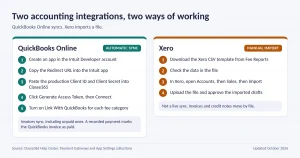
The QuickBooks setup runs in five steps:
- Create an app in the Intuit Developer account and select QuickBooks Online and Payments.
- Copy the Redirect URL from Organization Settings > Apps > QuickBooks into the Intuit app.
- Copy the Client ID and Client Secret from the production keys into Classe365 and save.
- Click Generate Access Token, then Connect.
- Turn on Link With QuickBooks for each fee category and pick the matching QuickBooks account.
For Xero, you download a preconfigured CSV template from Fee Reports, then import it in Xero through the Accounts menu and Sales.
Which LMS and school management software integrations matter most?
Classe365’s LMS and school management software integrations cover live lectures and meetings (Zoom, Microsoft Teams, Google Meet), assignment scores (Google Classroom, Moodle), and quiz proctoring (SMOWL). An admin configures them, and users access them from the LMS module.
| Integration | What it does | What you need |
| Zoom | Runs Live Lectures from the LMS and shows recordings to students and teachers | A Zoom Marketplace app built as a Server-to-Server OAuth app, with the LMS and Core modules active |
| Microsoft 365 | Adds Teams live lectures and syncs Outlook calendar events | An Azure app registration, the client ID, the client secret value and admin consent |
| Google Workspace | Adds single sign-on, Google Drive, Google Meet and Google Calendar | A Google Cloud project, an API key, an OAuth client, and Google verification |
| Google Classroom | Pulls scores from a linked Google Assignment into the Classe365 gradebook | The Google Workspace integration set up first |
| Moodle | Syncs academic structure, students, teachers, and assessment scores | A Moodle web service token and your Moodle site URL |
| SMOWL | Proctors online quizzes with monitoring and audio and video evidence | A SMOWL license with an Institution Identifier, license key and API key |
Zoom, Microsoft 365 and Google Workspace each need an app created in the vendor’s own admin console before Classe365 can connect. The Google Workspace article has ten setup steps and requires access to the Google developer console and Google Search Console. For how the LMS and SIS differ, see Classe365’s article on learning management systems and student information systems.
How does the Moodle sync work?
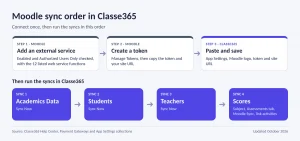
The Moodle integration automates user and course creation and brings Moodle gradebook scores into Classe365 assessments. Setup follows this order:
- In Moodle, go to Site Administration > Server > External Services and add a service with Enabled and Authorized Users Only checked. Add the 12 web service functions the article lists.
- Go to Manage Tokens, create a token for a user, and copy it with your Moodle site URL.
- In Classe365, open Modules > Administration > App Settings, click the Moodle logo, paste both values, and save.
- Run Sync Now for Academics Data first, then Students, then Teachers.
- To bring in scores, open a Subject, go to the Assessments tab, choose Moodle Sync, and link the Moodle activities.
How should student information system integration handle identity and rosters?
Classe365 documents three student information system connections. Clever receives user and section data, Google Workspace provides single sign-on, and Moodle receives students, teachers, and academic structure.
For Clever, Classe365 pushes user and section data through an SFTP upload:
- In Clever, with the District Admin role, go to Sync > Settings > SFTP Settings and copy the SFTP username and password.
- In Classe365, go to Accounts > Org Settings > Integrations > Clever, paste both values, and save.
- Reopen the Clever app settings and click Upload Files in Clever.
- Confirm the sync in the Clever Sync tab. Changes can take time to appear.
Classe365 announced this connection on its blog: Classe365 now integrates with Clever.
Google Workspace single sign-on lets users sign in to Classe365 with their Google accounts.
What changes for higher education software integration?
For higher education software integration, the relevant integrations are Moodle (academic structure, students, teachers, and scores), Microsoft 365 (Teams and Outlook calendar), Google Workspace, QuickBooks or Xero for accounting, SMOWL for quiz proctoring, and Zapier for custom workflows. Classe365 also lists a Degree Audit add-on at $75 per month. Classe365 has a dedicated page for chief technology officers.
Which communication integrations should a school management system support?
Classe365 documents four communication integrations: WhatsApp and Twilio for messages, Mailchimp for email marketing contacts, and Intercom.
| Integration | What it does | What you need |
| Sends template messages for login invitations, absences, invoices, and health records | A Meta developer account, a business phone number and a Meta payment method | |
| Twilio | Sends SMS notifications to students, parents and staff | A Twilio API key, Account SID, Auth Token and a From number |
| Mailchimp | Syncs school contacts for email campaigns | A Mailchimp account and an API key |
| Intercom | Connects an Intercom app to your Classe365 account | Your Intercom app ID |
WhatsApp works through templates. You create each one in Meta, submit it for approval, then map its variables to Classe365 data under Edit Template.
For Twilio, you enter an Account SID, Auth Token, and From Number, using live or test credentials. The Intercom article covers entering the app ID only. It does not describe which data is shared, so confirm that with Classe365 support.
What about documents, accessibility, analytics and automation?
PandaDoc handles electronic signatures. It connects to the CRM forms module and the Students module. You build templates in PandaDoc with tokens that match Classe365 field labels. Staff then create documents from a form submission or a student record, review the draft in PandaDoc, and send it. You generate the API key in PandaDoc and paste it into Settings > Apps > PandaDoc.
EqualWeb adds an accessibility widget. It offers screen reader adjustment, keyboard navigation, voice commands, and color adjustment. Create the site in EqualWeb, copy the code it provides, and enable the integration in Classe365. The help article does not state where the code goes, so confirm that with support.
Google Analytics tracks site traffic. You create a property in Google Analytics, copy the tracking script, and paste it under the Google Analytics app in Organization Settings. A green check next to Receiving Data confirms it works.
Zapier builds automated workflows with other apps. The help article says Zapier links to more than 5,000 apps.
- Enable the integration under Org Settings > Apps > Zapier.
- Find your subdomain and API key under Org Settings> API.
- In Zapier, create a Zap and pick a trigger.
- Connect your Classe365 account with the subdomain and API key.
- Choose the action app, set up its data, and test it.
- Publish the Zap.
How do you check data privacy before connecting third-party tools?
Under FERPA, a school can treat an outside contractor as a school official if it performs a service the school would otherwise do with employees. The contractor must also be under the school’s direct control in using and maintaining education records. The rule is in 34 CFR 99.31.
Ask each vendor:
- What student data do you receive, and which fields are optional?
- Do you use the data for anything beyond the service?
- Will you sign a data processing agreement?
- Who can you share it with?
- What happens to the data when we cancel?
Classe365 publishes a FERPA compliance statement for its own handling of records. Each connected vendor, such as Twilio or Meta, has its own terms.
Integration readiness checklist
Use this list before you connect any tool.
- List every tool your staff uses today, including spreadsheets.
- Mark each one as a module, an integration, or a manual process.
- Name one owner for each vendor account.
- Decide which system owns each student field.
- Check whether each connection runs both ways or one way.
- Record each vendor’s data handling terms.
- Write down who fixes a failed sync, and how they find out.
Which integrations should your school connect first?
The table maps common school types to the integrations documented in this guide.
| Your situation | Connect first | Then add |
| Private K12 school collecting tuition online | Stripe or PayPal, then WhatsApp or Twilio | QuickBooks |
| K12 school that rosters through Clever | Clever, Google Workspace | Zoom or Microsoft 365 |
| University that already runs Moodle | Moodle, Microsoft 365 | SMOWL, QuickBooks or Xero |
| Admissions-heavy school | CRM forms, PandaDoc, Mailchimp | Stripe Connect |
How much does an integrated school management setup cost?
Classe365 publishes its pricing. Core starts at $100 per month for 1 to 100 students. Each add-on, such as the LMS, Fee & Invoicing, CRM, or Finance and accounting, costs $75 per month. The AI module adds a usage charge. Annual billing saves 10%, and the 15-day free trial gives full access to all modules without a credit card.
Third-party tools bill separately. Twilio, Meta for WhatsApp, a SMOWL license, PandaDoc, and Zapier each need their own account. Some integrations also depend on specific Classe365 modules. The Zoom article, for example, requires the LMS and Core modules.
See current numbers and start the free trial on the pricing page. To see these integrations configured on your own data, request a demo.
Pricing last checked October 12, 2026. Confirm on the pricing page before you decide.
FAQ
Do QuickBooks invoices from before I connected the integration appear in QuickBooks?
No. Only invoices created after you enable the integration sync. Each invoice also needs a due date, or the sync fails for that invoice.
Can I send many invoices to Xero at once?
Yes, but in files. Split any file with more than 500 items. Invoices and credit notes arrive in Xero as drafts, so someone must approve them there.
Why did my WhatsApp message not send to a parent?
Free-form messages can only be sent within 24 hours after the recipient replies. Outside that window, you need an approved template to restart the conversation.
How many documents can PandaDoc generate in one go?
Bulk generation is limited to 10 documents at a time. Your PandaDoc template tokens must also match the Classe365 field labels, or the fields stay empty.
Why are Google Classroom scores not syncing?
Check three things. Each student’s email in Classe365 must match their Google Classroom email, and duplicate emails block the sync. The total points on both assignments must also match, and the sync screen’s “More Details” shows the cause.
Should I test an integration before connecting it to real families?
Yes, where the vendor offers a test mode. Stripe uses test keys, Stripe Connect has sandbox mode, Twilio has test credentials, and PandaDoc has a sandbox API key. Switch to live credentials only after one full test run.
What does the Skype integration do?
An instructor starts a Skype conversation, copies its link, and pastes it into the LMS using the Text option, so students can click it to join. It does not embed video. The help article is dated October 2, 2017, and says video embed is not available for Skype Free or Skype for Business.
What do I need to prepare in Mailchimp before connecting it?
Create two audiences named Students and Teachers, because Classe365 requires them. Remove the default first name and last name columns from both audiences, since Classe365 supplies its own.