Classe365
 Hiree365
 4.8/5 on Capterra · 169 reviews
 4.3/5 on G2 · 26 reviews



School admission software helps schools manage inquiries by grade and campus in one place. Each inquiry record includes both fields, while grade-wise seat limits and clear ownership rules help staff track availability and follow up with families. Instead of managing six separate spreadsheets, your team gets one dashboard and a single record for each family, from the first inquiry through enrollment.
This guide walks through nine practical steps to set up the process: mapping your grade and campus structure, defining seat limits and age cutoffs, creating a central intake form, assigning inquiry owners, identifying duplicate records and siblings, managing admission stages and waitlists, tracking reports by grade and campus, and transferring enrolled students to the student information system (SIS).
Step 1: How do you map grades and campuses into one system?
Who does this: System administrator or IT lead
Before you track anything, build a structure that matches your school. Every grade and every campus needs its own label in the system so that inquiries, seat counts and reports all run off the same data.
Start with three fields on every record: campus, grade and intake year. If your school uses terms like "Lower School" and "Upper School," map those to grade ranges so a Grade 5 inquiry always lands in the right group.
Most K-12 schools have more grade levels than they realize. The average U.S. elementary school has 439 students, the average middle school has 562 and the average high school has 831, according to NCES Common Core of Data for 2023 to 2024. Spread across grade levels, that's roughly 50 to 70 students per grade at an elementary school and 200 or more at a high school.
A school with two campuses and grades K through 12 has 26 grade and campus combinations. A school admission management system that can't filter by both at once will force your team back to spreadsheets.
Field | Example | Why it matters |
Campus | East | Routes the inquiry and controls permissions |
Grade | Grade 3 | Sets the seat limit and age check |
Intake year | Fall 2027 | Separates this year's families from next year's |
Division | Lower School (K to 5) | Groups grades for reporting |
Step 2: How do you set seat limits and age cutoffs for every grade?
Who does this: Registrar, with approval from the head of school
Every grade at every campus needs two numbers: how many seats are available and the age a child must reach by a cutoff date.
Set the seat limit first. Take the total capacity for each grade, subtract returning students and reserved spots (siblings, staff children, scholarship students), and what's left is your open seats for new families. Update this count at the start of every enrollment cycle.
Age cutoffs vary by state. Enter the cutoff date in your system so it flags any child who doesn't meet it. If your school offers early admission or grade acceleration, add an override field with a reason and an approver so the exception is documented.
Step 3: How do you build one intake form that captures grade and campus?
Who does this: Admissions coordinator
Use one form for every campus. Add a required "Campus" dropdown and a required "Grade applying for" dropdown. When a parent picks a campus, the form should show only the grades that campus offers.
Three more fields belong on every form: child's date of birth (the system checks it against the grade's age cutoff right away), sibling already enrolled (a yes or no with a name field for linking), and a "How did you hear about us" dropdown with fixed options instead of free text.
Address the form to parents, not children. If a child under 13 fills in the form directly, COPPA applies. Our COPPA compliance checklist for K-12 schools explains what that means. Record consent to receive texts and emails on the form itself.
Phone and walk in inquiries need the same fields. Give front desk staff a quick entry screen with campus, grade, source and date of birth as required fields.
Step 4: How do you route each inquiry to the right person by grade and campus?
Who does this: System administrator configures the rules; the admissions coordinator manages exceptions
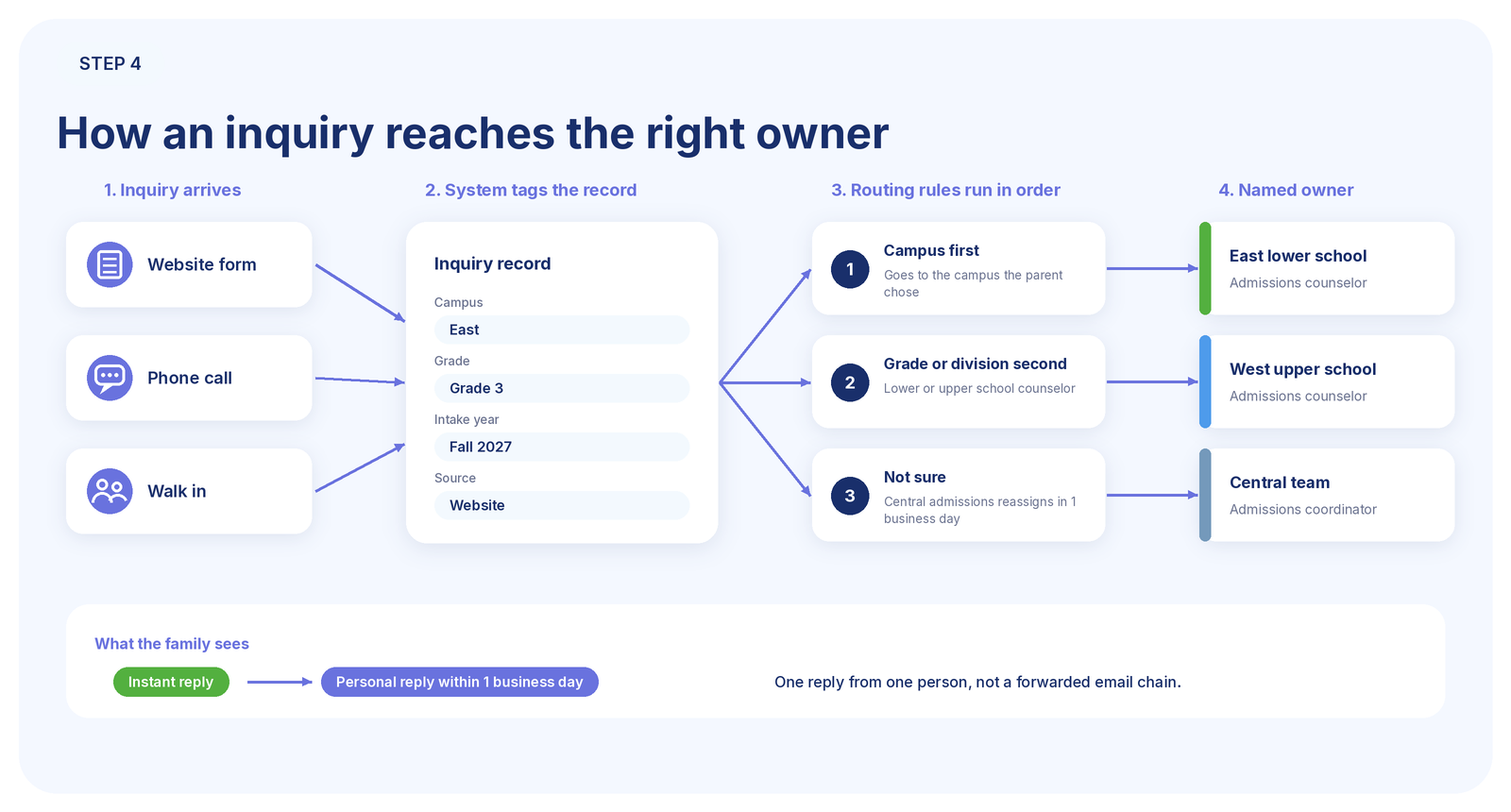
Routing sends each inquiry to a named owner based on the campus and grade the parent picked. The family gets one reply from one person instead of a forwarded email chain.
Set rules in this order:
Campus first. Every inquiry goes to the campus the parent chose.
Grade or division second. If your East campus has a lower school counselor and an upper school counselor, route by grade range.
"Not sure" goes to central. Add a "Not sure which campus" option that routes to a central admissions person, who asks a few questions and reassigns within one business day.
If the inquiry says | Route it to |
East campus, Grade 3 | East campus, lower school admissions |
West campus, Grade 9 | West campus, upper school admissions |
Not sure, Grade 6 | Central admissions coordinator |
Phone call, no campus picked | Front desk logs it, central admissions assigns it |
Send an automatic reply right away so the family knows someone has their inquiry. Then send a personal reply within one business day.
For more on reply timing and stage setup, read our guide on using a CRM for student admissions teams.
Step 5: How do you match duplicates and link siblings across grades?
Who does this: Admissions coordinator
Check every new inquiry against existing records across all campuses and grades before saving it. Match on parent email and mobile number, not on the child's name alone, because names get entered differently each time.
When a match appears, keep one parent record and add a separate child entry under it. A family with a child applying for Grade 1 at the East campus and another for Grade 6 at the West campus should have one parent profile and two child records, each with its own grade, campus and stage.
Sibling links matter because many schools give siblings enrollment priority, the family should get one set of messages instead of two, and one family counted twice inflates your inquiry numbers and makes every conversion rate look worse.
When a family changes their mind about the grade or campus, change the tag on the existing record instead of creating a new one. Keep the original inquiry date, source and notes.
Step 6: How do you move families through admission stages?
Who does this: Campus admissions counselor (each counselor manages their own grade and campus load)
Use one stage list for the whole school so every campus reports on the same terms: New inquiry, Contacted, Tour booked, Tour attended, Application submitted, Offered, Enrolled and Lost. Write one exit rule for each stage so families move forward the same way everywhere.
Stage | Exit rule | Time limit |
New inquiry | Staff has replied | Same business day |
Contacted | Two way conversation started | 2 days |
Tour booked | Date confirmed | 5 days |
Tour attended | Family visited | Follow up within 24 hours |
Application submitted | Documents received | Your deadline |
Offered | Deposit received | Your policy |
Enrolled | Confirmed for the intake | Before classes start |
Lost | Declined or no response | Record a reason |
Always record a lost reason: fees, distance, no seat in the grade, chose another school or timing. After one intake cycle, this list tells you more than a survey.
Our guide on the difference between registration and enrollment explains when each step happens.
Step 7: How do you manage waitlists when a grade fills up?
Who does this: Admissions director (centrally, across all campuses)
When the seat count for a grade hits zero, the system should stop accepting new applications for that grade and campus and start a waitlist instead. Number the waitlist in the order families joined it, so you can offer the next seat fairly.
Waitlists are bigger than most schools expect. In Texas alone, 69,853 unique students were on charter school waitlists in fall 2025, across 550 campuses, according to the Texas Education Agency's 2025 Charter School Waitlist Report. Demand at the lower grades was consistently higher.
Three things make grade level waitlists work: one list per grade per campus (don't mix Grade 1 and Grade 5 together), automatic notifications when a seat opens (email the next family and give them a deadline), and cross campus visibility so the admissions director can offer a spot at another campus if one has room.
Step 8: How do you compare enrollment by grade and campus in one report?
Who does this: Head of school or central admissions director
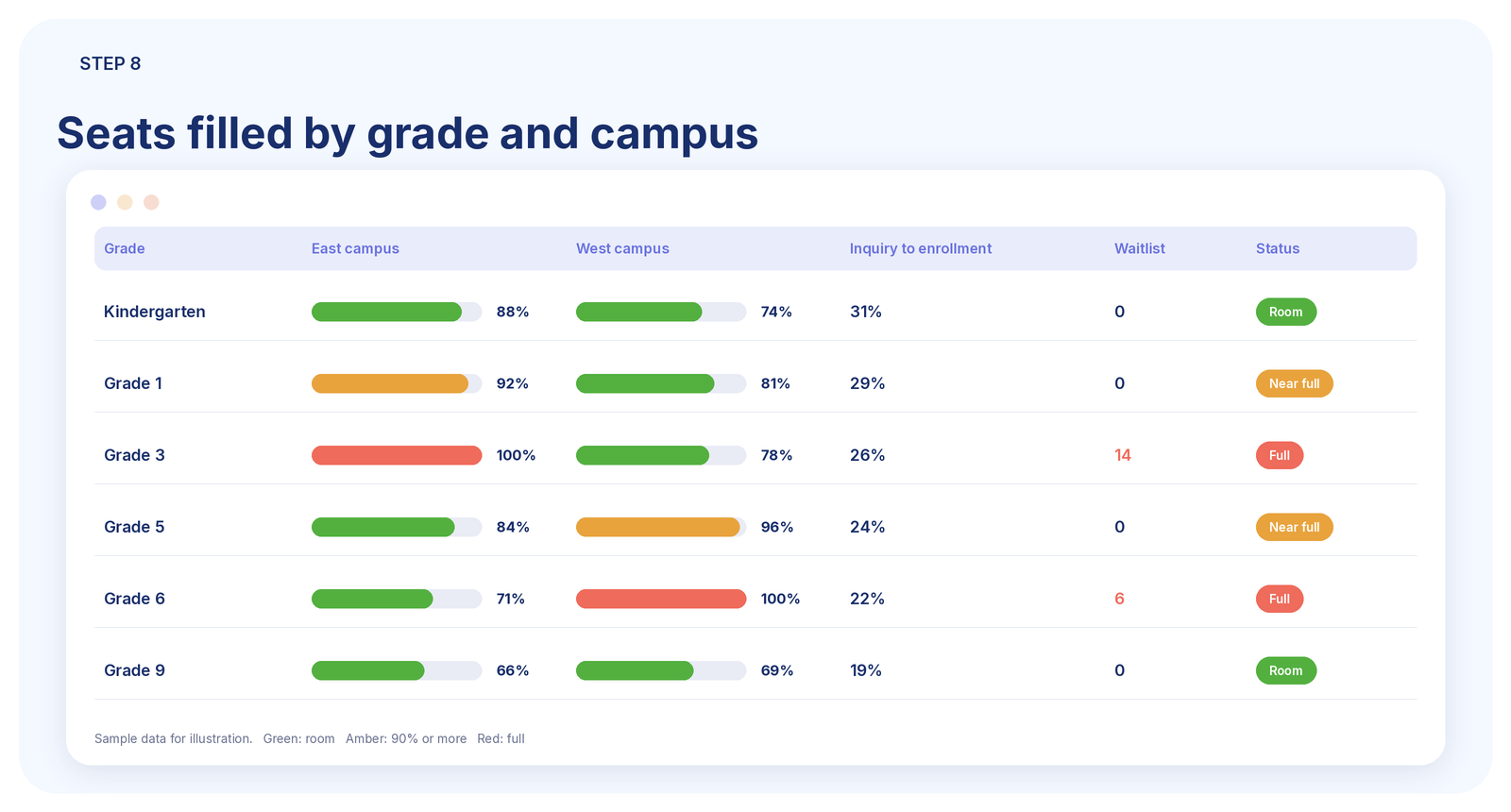
Run reports that break enrollment down by grade and by campus at the same time. Raw totals mislead because a campus with 200 seats and a campus with 80 seats aren't comparable on the same scale.
Measure | How to calculate | What it tells you |
Seats filled | Enrolled divided by capacity for that grade | Which grades are full and which have room |
Inquiry to enrollment | Enrolled divided by inquiries for that grade | Which grades convert well |
Response time | Hours from inquiry to first personal reply, by campus | Which campus replies late |
Waitlist length | Families waiting for that grade | Where to plan for growth |
Source by grade | Enrolled students by source, split by grade | Which campaigns reach the right families |
Step 9: How do you hand enrolled students to the student information system?
Who does this: Registrar
When a family pays the deposit and confirms, the inquiry record should move into the student information system without anyone retyping it. The child's name, date of birth, grade, campus, parent contacts and enrollment date should carry over automatically.
Our comparison of an admissions CRM and a student information system explains where one ends and the other begins.
Once the record moves, FERPA applies. Only staff with a legitimate educational interest should see the student's record. Our FERPA compliance software guide and the Classe365 FERPA compliance page cover the details.
How do you choose school admission software that tracks by grade and campus?
Not every school admission management system handles grade level tracking. Use this checklist when evaluating K-12 admissions management software.
Grade and campus fields on every inquiry record
Seat capacity per grade, per campus
Age cutoff checks by grade
Routing rules by campus and grade
Duplicate matching across all campuses
Sibling linking with priority flags
Waitlist per grade with automatic notifications
Reports by grade and campus together
Handoff to a student information system without retyping
Published pricing so you can plan
Then ask each vendor to complete these four tasks live:
Submit an inquiry for Grade 3 at the East campus and show where it lands.
Submit the same family again for Grade 5 at the West campus and show how the duplicate is handled.
Fill a grade to capacity and show how the waitlist starts.
Enroll a student and show the record in the student information system.
Demand for school choice is growing. About 1.3 million students now participate in school choice programs across the United States, a 25 percent increase in one year, according to EdChoice.
For a broader buyer checklist, see 10 questions to ask before buying school management software.
Where does Classe365 fit?
Classe365 is an all in one school management platform where the admissions CRM and the student information system share one database. A record created at the first inquiry becomes the student record after enrollment without anyone retyping it.
Here's what two users say about day-to-day use:
"The best about Classe365 is how easy it is to create new fields, new forms, new courses." – Inken Krevet, Director of International Academic Partnerships, BESIGN The Sustainable Design School
"Student administrative and academic management is streamlined and helps us save time and be more efficient." – Khaled Bitat, Administrative Director, Ecole les Aures
Want to see it with your own grades and campuses? Request a demo and bring your five tasks.
Frequently Asked Questions
Talk to our teamWhat if a child's birthday falls near the age cutoff for a grade?
Enter the cutoff date in the system and let it flag borderline cases automatically. Then create an override field with a reason and approver so exceptions are documented and traceable, not just allowed informally.
Can we run re-enrollment for returning students through the same system?
Yes, if the system treats re-enrollment as a separate stage with its own deadline. Send returning families a pre-filled form with their current grade and campus so they only confirm, and open the remaining seats to new inquiries after the re-enrollment deadline.
How do we handle grade placement testing?
Add a "Placement test" stage between "Tour attended" and "Application submitted" with a time limit. Record the test date, result and recommended grade on the inquiry, so the admissions director can place the child and update the seat count in one step.
What happens when a family wants to change the grade after submitting an application?
Change the grade tag on the existing record instead of creating a new one. Update the campus owner if the grade falls in a different division. The original inquiry date, source and notes should stay on the record.
How do we track inquiries for a new grade or campus that doesn't exist yet?
Create the grade or campus in the system with a "Coming soon" label and a seat limit of zero. Log inquiries against it so you have demand data before the first intake, and convert the label to active when you're ready.
Should each campus have its own admissions page on the website?
Yes. Give each campus its own landing page with a form that pre-selects that campus. Track visits to each page so you can see which campuses generate the most interest and adjust your marketing.
How do we keep track of families who inquire but aren't ready to apply for another year?
Tag them with the intake year they're interested in and move them to a "Future interest" stage. Send a reminder when enrollment opens for that year so they don't have to start over.
What's the simplest way to show the head of school how admissions are going?
Build one report that shows seats filled versus capacity for every grade at every campus. Color code it: green for grades with room, yellow for grades near capacity, and red for full grades. Update it weekly during enrollment season.